gCMOB for PC: Complete Guide to Accessing Your Surveillance System on a Computer
Surveillance is no longer confined to specific devices like mobile phones or tablets. With the growing need for flexibility and broader access, the gCMOB for PC solution has emerged as an efficient way to monitor and manage your security system from a desktop or laptop. While the gCMOB app is primarily designed for mobile users, it can be configured for use on PCs, offering larger displays and improved multitasking capabilities.
In this guide, we’ll explore everything you need to know about using gCMOB on your PC, including its features, benefits, setup process, and frequently asked questions.
What is gCMOB for PC?
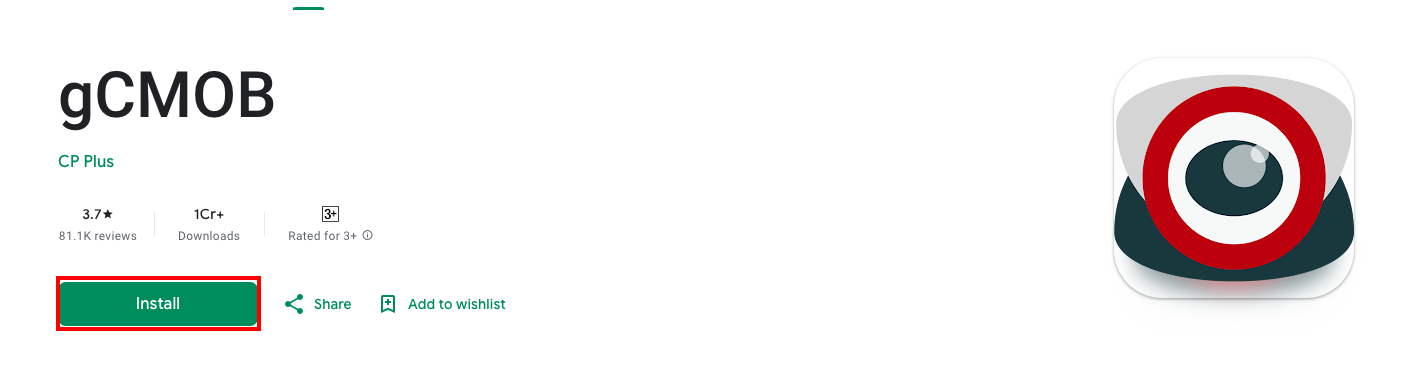
gCMOB for PC is a method that allows users to access the features of the gCMOB mobile app on their Windows or Mac systems. While CP Plus has not released a dedicated PC version of gCMOB, you can still use the app on your computer through third-party software like Android emulators.
With gCMOB on your PC, you can monitor live feeds, playback recorded videos, control PTZ cameras, and manage multiple devices from a larger screen. This setup is especially beneficial for users managing extensive surveillance systems in offices, retail stores, or industrial facilities.
Features of gCMOB for PC
The gCMOB app retains its mobile functionalities when accessed on a PC, providing robust and versatile surveillance management tools. Here’s a breakdown of the key features:
1. Live Camera Monitoring
View live streams from multiple cameras on your PC, with the ability to split the screen into grids for simultaneous monitoring.
2. High-Resolution Viewing
The larger screen size of a PC enhances video clarity, enabling detailed analysis of live or recorded footage.
3. Multi-Channel Playback
Review recordings from up to four channels simultaneously, making it easier to correlate events from different camera angles.
4. PTZ Controls
Manage Pan-Tilt-Zoom cameras effortlessly with mouse and keyboard input, offering precise control over surveillance coverage.
5. Notifications and Alerts
Receive motion detection or device status alerts directly on your PC, ensuring you’re informed of critical events.
6. Remote Device Management
Add, configure, and manage your DVRs, NVRs, and IP cameras remotely from your computer.
7. Two-Way Communication
Engage in real-time conversations using connected devices, such as intercoms or door cameras, directly from your PC.
8. Enhanced Multitasking
A PC interface allows you to monitor cameras while working on other tasks, thanks to windowed and split-screen modes.
Also Read: How to use gCMOB security camera app?
Benefits of Using gCMOB on a PC
Using gCMOB on a PC offers several advantages, making it a preferred choice for many users:
Better Viewing Experience: The larger screen size provides better clarity and comfort, especially when monitoring multiple feeds.
Improved Productivity: Multitasking on a PC is more efficient compared to mobile devices, making it ideal for professionals.
Scalable Monitoring: Managing a large number of cameras is easier on a PC, thanks to its multi-screen and grid-view capabilities.
Ease of Navigation: A mouse and keyboard provide precise and quick navigation through the app’s features.
Convenience for Work Environments: Businesses and institutions benefit from centralized monitoring on PCs, reducing the need for constant mobile usage.
How to Install and Use gCMOB on PC?
Since there isn’t a dedicated PC version of the app, you’ll need an Android emulator to run the gCMOB APK on your computer. Follow these steps to get started:
Step 1: Download an Android Emulator
Popular Android emulators like BlueStacks, NoxPlayer, or LDPlayer allow you to run Android apps on your PC. Choose one based on your system’s specifications and download it from their official website.
Step 2: Install the Emulator
Once downloaded, install the emulator by following the on-screen instructions. This process is straightforward and typically takes a few minutes.
Step 3: Download gCMOB APK
Download the latest version of the gCMOB APK from a trusted source. Ensure the file is compatible with the emulator and updated to the latest version.
Step 4: Install gCMOB in the Emulator
Open the emulator and navigate to its file explorer or drag and drop the gCMOB APK file into the emulator window.
Install the app by following the prompts.
Step 5: Launch gCMOB
Once installed, open the gCMOB app within the emulator, log in with your credentials, and start adding devices for monitoring.
System Requirements for Running gCMOB on PC
To ensure smooth operation, your PC should meet the following minimum requirements:
Operating System: Windows 7/8/10/11 or macOS 10.10+
Processor: Intel or AMD Dual-Core CPU
RAM: 4GB (8GB recommended for better performance)
Storage: At least 5GB of free space
Graphics Card: Integrated or dedicated GPU with updated drivers
Internet Connection: Stable connection for live streaming and cloud access
Common Use Cases for gCMOB on PC
The versatility of gCMOB for PC makes it suitable for various applications, including:
1. Home Security
Monitor your home in real-time, review recordings, and receive alerts directly on your PC for enhanced safety.
2. Office Surveillance
Keep an eye on your office premises, monitor employee productivity, and manage devices remotely.
3. Retail Stores
Track customer activities, prevent theft, and analyze store operations with multi-camera setups.
4. Industrial Facilities
Monitor equipment, ensure worker safety, and oversee large-scale operations from a centralized PC station.
5. Public Spaces
For locations like malls or transportation hubs, gCMOB on PC provides scalable and efficient surveillance management.
FAQs About gCMOB
1. Can I use gCMOB on a PC without an emulator?
Currently, there is no dedicated PC version of gCMOB. You must use an Android emulator to run the app on your computer.
2. Is it safe to use an emulator for gCMOB?
Yes, using a trusted emulator like BlueStacks or NoxPlayer is safe. Ensure you download both the emulator and APK file from reputable sources to avoid security risks.
3. Is gCMOB for PC free?
Yes, the gCMOB app is free to use. However, some features may depend on the CP Plus devices you own.
4. Does gCMOB for PC support all CP Plus devices?
The app is compatible with most CP Plus DVRs, NVRs, and IP cameras. Check your device model for compatibility before setup.
5. Can I record footage on my PC using gCMOB?
The app itself does not store recordings on your PC. However, you can access and download recorded footage stored on your DVR or NVR.
6. Does gCMOB work offline?
gCMOB requires an internet connection to access live feeds and cloud-based features. However, local recordings stored on the DVR/NVR can be accessed without internet.
7. Can I use gCMOB on multiple PCs simultaneously?
Yes, you can log in to the app on multiple devices. However, simultaneous access may depend on your device’s network bandwidth.
Conclusion
The ability to use gCMOB on a PC bridges the gap between mobile and desktop surveillance, providing a seamless experience for users who need flexibility and scalability in their monitoring systems. Whether you’re securing a home, managing a business, or overseeing industrial operations, gCMOB for PC ensures that you stay in control with advanced features and an intuitive interface.
Setting up gCMOB on your PC might require an extra step with an emulator, but the benefits of enhanced multitasking, larger screens, and centralized management make it well worth the effort. Download the latest gCMOB APK today and experience superior surveillance like never before.